Tank Node
The Tank node represents a finite storage vessel with a dynamic water surface elevation. It acts as an energy buffer for your hydraulic network, filling when supply exceeds demand and draining when demand exceeds supply.
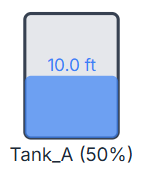
Functionality in Simulations
How a Tank behaves depends heavily on the type of simulation you are running:
Steady-State and EPS (Extended Period Simulation)
Because EPS in R-THYM solves a series of static hydraulic "snapshots," the physics engine performs strict mass balance calculations between each time step. The net difference between inflow and outflow over the time step determines the change in the tank's volume. This new volume is then carried forward to calculate the starting water level for the subsequent time step.
MOC (Transient) Simulation
During high-speed Transient (MOC) simulations, a standard Tank acts mathematically as a Pressure Boundary to the acoustic wave solver. Because transient events (like water hammer) occur over fractions of a second, the massive volume of water inside a tank absorbs high-frequency acoustic waves without its surface level changing appreciably from the pressure wave itself. However, because R-THYM runs dynamic MOC concurrently with the EPS mass balance engine, the tank will still continue to slowly fill or drain at its macro flow rate throughout the transient simulation, and you will see its level update in real-time.
(Note: Specialized surge control tanks, such as Standpipes or Hydropneumatic Tanks, have unique rapid-response physics and will be covered in later chapters).
UI Workflow and Configuration
To add a Tank to your model, click the Tank icon (which resembles a cylindrical vessel) in the Component Toolbar and drag it onto the canvas.
Double-click on the node or right-click the node and select Properties to configure its physical dimensions and thresholds.

The primary configuration fields include:
- Component ID: The unique identifier for this node (e.g.,
Tank_A). - Elevation (ft): The physical elevation of the bottom (invert) of the tank above sea level.
- Diameter (ft): The internal diameter of the cylindrical tank.
- Max Depth (ft): The maximum allowable depth of water before the tank overflows.
- Initial Level (%): The percentage of the tank that is full at the start of the simulation (Time = 0).
- Thresholds: You can define a Min Level Warn and Max Level Warn percentage. If the water drops below or rises above these limits during a simulation, a warning will be logged to prevent your digital twin from running dry or overflowing unnoticed.
Live Telemetry
To view a Tank's performance during or after a simulation, simply left-click the node on the canvas. The right-hand Telemetry Panel will populate with its specific data.
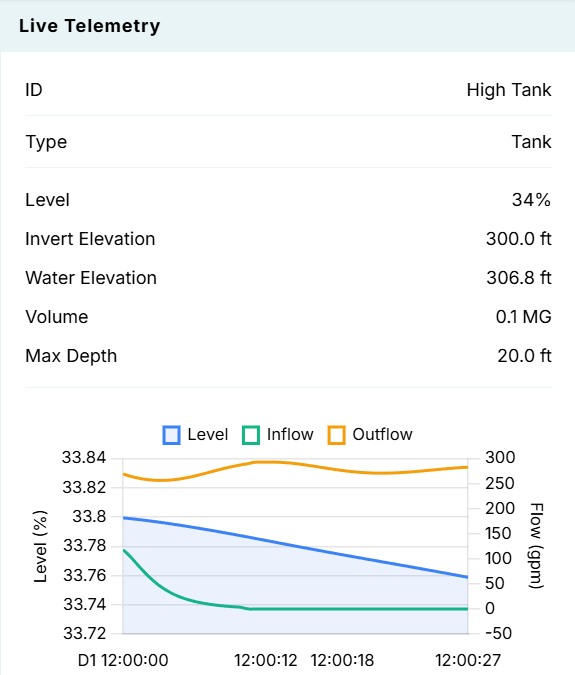
The telemetry panel provides a comprehensive overview of the tank's state:
- Instantaneous Metrics: The top section displays real-time snapshots of the Level (%), Invert Elevation, actual Water Elevation (absolute HGL), calculated Volume (in Millions of Gallons), and the Max Depth.
- Dynamic Chart: The live chart plots the Level (%) alongside the Inflow and Outflow rates dynamically over time. This visualization makes it easy to verify the mass balance calculations and visually track the fill/draw cycles of your storage infrastructure.