The Results Menu
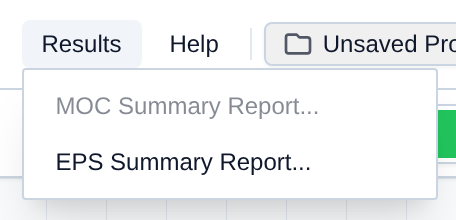
The Results menu holds the post-run summary reports: pressure verification for a Method of Characteristics (MOC) surge run, and water/energy/economics for an EPS run.
Here is a breakdown of every option in the Results menu:
- MOC Summary Report...: Peak min/max pressures and the acceptance check. MOC, after a completed or paused run.
- EPS Summary Report...: Water, energy, and economics for the elapsed run. EPS, after a completed or paused run.
[!NOTE] Switch EPS / MOC on the control bar before opening the matching report. See the Glossary for EPS, MOC, and related terms.
MOC Summary Report
Open Results → MOC Summary Report... after you complete or pause an MOC run. The table lists each node's minimum and maximum pressure at native 10 ms resolution. If you set Transient Acceptance Criteria, an Engineering Acceptance Check appears below the table.
- Set the control bar to MOC, run, then pause or let the duration finish.
- Open Results and choose MOC Summary Report....
- Review min/max pressure by node and the acceptance badge.
- Optionally click Export Verification Data.
- Click Close.
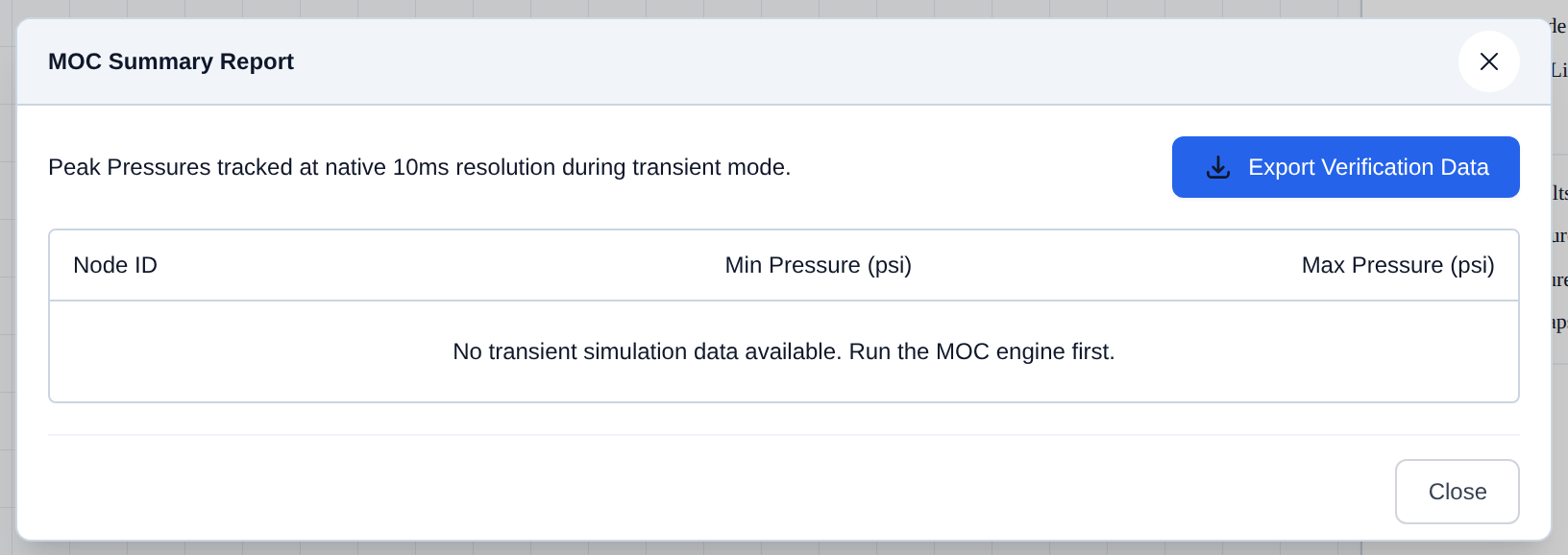
If you open the report before an MOC run, the table says no transient data is available.
EPS Summary Report
Open Results → EPS Summary Report... after you complete or pause an EPS run. Rows cover water delivered, network pressure range, energy import/export, and Cost Estimator economics for the elapsed period.
- Set the control bar to EPS, run, then pause or let the duration finish.
- Open Results and choose EPS Summary Report....
- Review categories (Water, Energy, Summary, Economics).
- Optionally click Export EPS Data (.zip).
- Click Close.
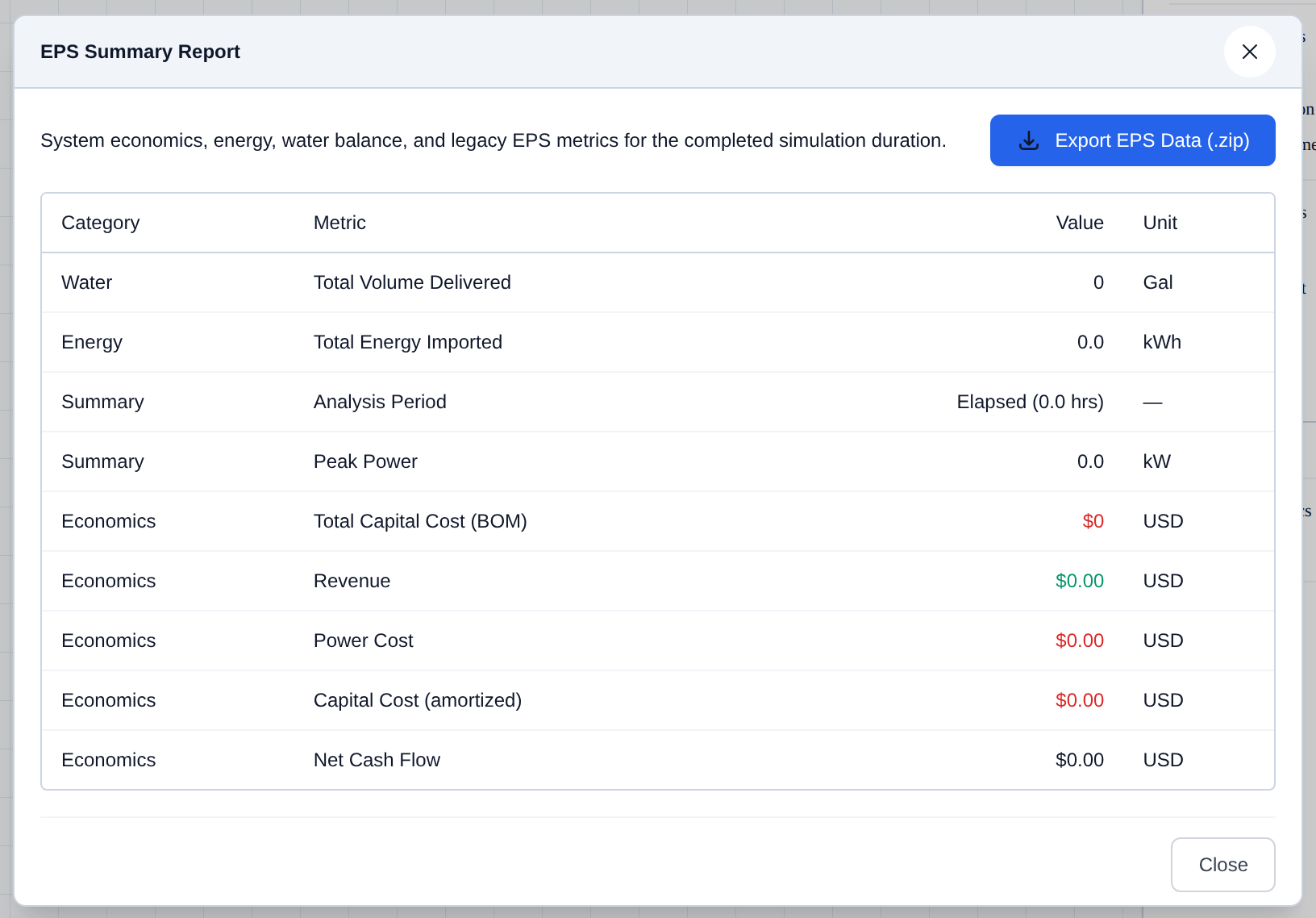
[!NOTE] This report is disabled in MOC mode. Economics follow the Cost Estimator unit-price book and the control-bar duration.